Configure your Outlook > LEAP preferences
|
Notes:
|
|
|
|
  |
|
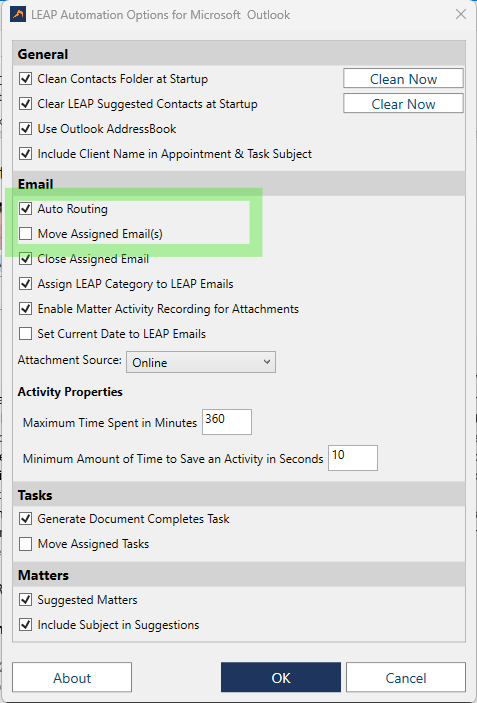
Why this setup? Auto Routing enables LEAP's auto-filing of recieved emails when it's a reply to a previously assigned-to-matter sent emails. Move Assigned Emails(s) would move your assigned-to-matter emails into a subfolder which can be problematic when switching on the above Auto Routing function. It would not be ideal to have both options switched on at the same time. |
|
More Details
|
Option |
Description |
| General | |
| Clean Contacts folder at Startup | All contacts from LEAP will be cleared each time Outlook is closed and re-opened. Click Clean Now to clean manually. |
| Clear LEAP Suggested Contacts at Startup | All suggested contacts from LEAP will be cleared. This means that email addresses will not pop-up automatically in the recipient column. Click Clear Now to clear manually. |
| Use Outlook AddressBook | You can use your pre-existing Outlook address book when using Outlook through LEAP. If you untick the box, only LEAP contacts will appear. |
| Include Client Name In Appointment & Task Subject | The surname of the client will appear in the Subject when a new appointment or task is created. |
| Emails | |
| Auto Routing | If a user sends an email from a matter in LEAP, and Auto Routing is enabled, any replies to that email will automatically be saved back to the matter. Please note that the Auto Routed email will only be saved to the top level of the correspondence list. |
| Move Assigned Email(s) | Emails assigned to LEAP will automatically move to the Inbound or Outbound LEAP Matter Based Email Folder. |